
Generate strong, random passwords instantly with our free password generator tool. Protect your online accounts with unique passwords that are tough to crack. Customize your password length and character types below!
Recommended Password Manager: Try out NordPass, the ultimate password manager that stores all of your passwords and other sensitive data in one place
#Note: The password is generated within a web browser and not stored on our server. Stay safe online with CyberSafeGuide’s free tools and resources.
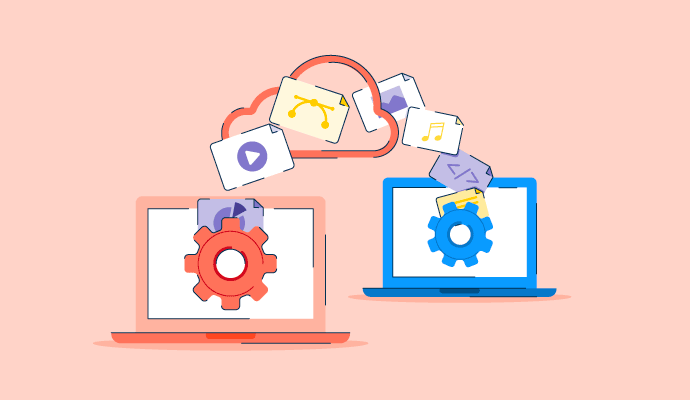
Every file transmission over public web routing architectures introduces exposure surfaces. Whether you are distributing sensitive legal contracts, proprietary software code, intellectual property, or personal identity documentation, transferring raw data across standard web paths risks interception, unauthorized file access, or storage misconfigurations. Many data exposures occur not from targeted network intrusions, but from improper transmission…
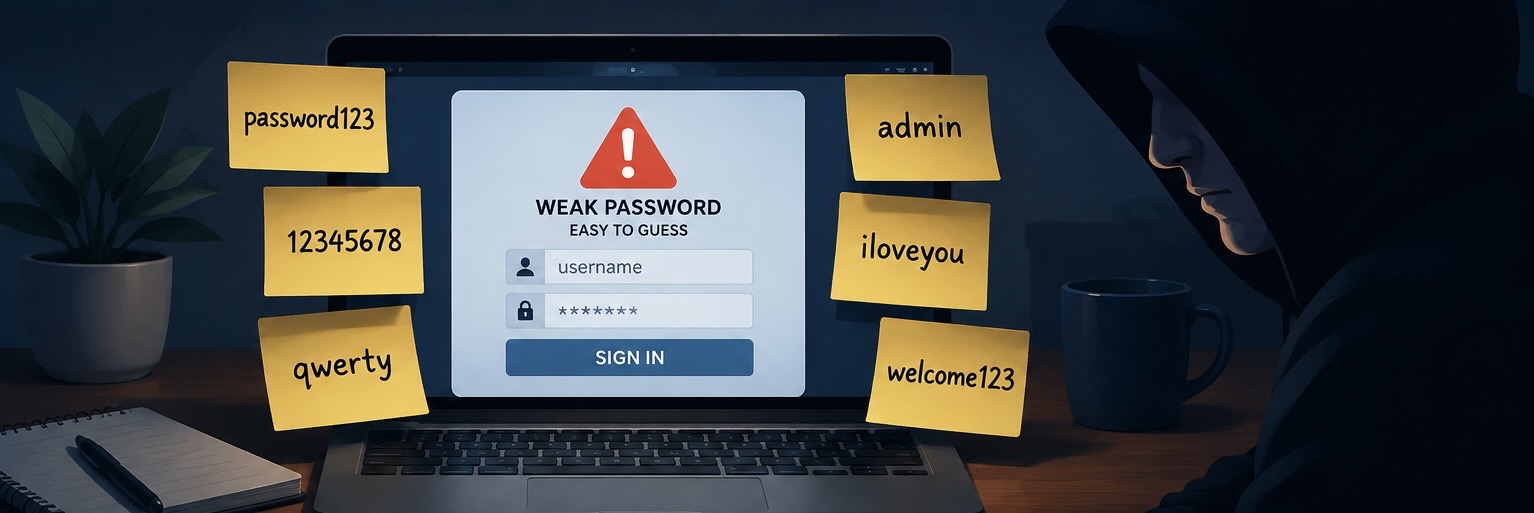
Despite significant advancements in biometrics and passkey deployments, standard alphanumeric string passwords remain the foundational entry point for consumer and enterprise authorization. However, the human brain is mathematically unequipped to generate or memorize true cryptographic randomness. Under friction, users consistently fallback on predictable cognitive frameworks. Cybercriminals do not guess passwords manually. They deploy automated cracking…
Continue Reading The Most Common Password Mistakes People Make
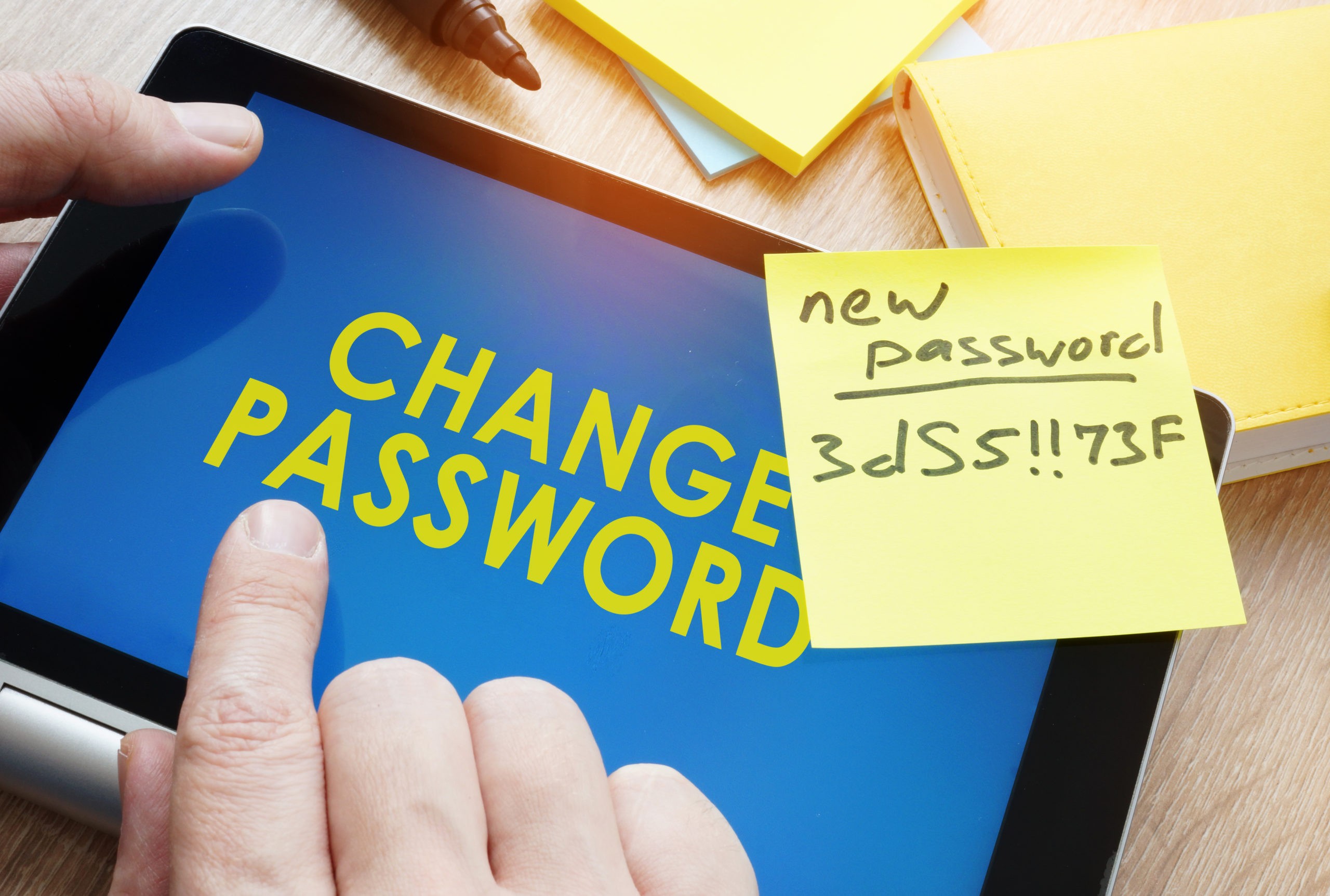
For decades, modifying corporate and personal credentials on a strict periodic cycle was considered a foundational commandment of basic cybersecurity hygiene. Organizations across the globe routinely enforced mandatory password resets every 30, 60, or 90 days, operating under the assumption that frequent rotations would compress the window of opportunity for an attacker utilizing a compromised…
Continue Reading How Often Should You Change Your Passwords?

Encountering a malware infection—whether it manifests as persistent trojan operations, aggressive browser redirections, or hidden information-stealing payloads—requires a structured, professional incident response strategy. Haphazardly attempting to clean an active infection while a computer remains fully connected to the web can trigger defense mechanisms within modern malware, causing it to self-destruct, destroy local files, or entrench…

Modern Smart TVs offer unparalleled access to global streaming entertainment channels, transforming contemporary domestic media consumption. However, beneath their high-definition interfaces lies a comprehensive data-harvesting apparatus. Rather than operating as passive video displays, contemporary smart televisions function as internet-connected endpoint telemetry devices designed to profile individual user behavioral habits in real time. This automated data…
Continue Reading How Smart TVs Track What You Watch (And How to Stop It)
When interacting with critical database assets, sensitive enterprise document stores, or modern financial ledgers, encountering a prompt stating “This document is password protected” is an expected baseline security control. Cryptographic file protection is highly effective for protecting data during transit across untrusted networks. However, once a secure file has been successfully transferred to an encrypted,…
Continue Reading How to Remove a Password from a PDF: 4 Simple & Secure Methods

As critical daily infrastructure—from core banking and institutional supply chains to remote professional workloads—increasingly migrates to the web, the consumer digital attack surface has expanded exponentially. The modern internet provides unparalleled convenience, but it is simultaneously populated by sophisticated malicious actors weaponizing generative AI frameworks, automated credential stuffing rigs, and dynamic social engineering loops to…
Continue Reading 10 Essential Habits to Stay Safe Online in 2025: A Practical Guide

Creative abstract mobile internet web communication security and safety business commercial concept: 3D render illustration of modern black glossy touchscreen smartphone or mobile phone with enter password verification screen and metal house key with keyhole isolated on white background For decades, passwords have been the primary way we secure our online accounts. From email and…
Continue Reading Passkeys vs Passwords: Which Is More Secure?
Every day, cybercriminals send millions of phishing emails designed to trick people into revealing sensitive information, downloading malware, or handing over access to important accounts. While phishing attacks have existed for decades, they have become increasingly sophisticated, making them harder to detect than ever before. A phishing email may appear to come from your bank,…
Continue Reading How to Identify a Phishing Email: 10 Warning Signs You Should Never Ignore
Every day, millions of files are shared, downloaded, and stored across devices and cloud platforms. From work documents and personal photos to financial records and sensitive business data, files are constantly moving between systems and users. But while file sharing has become easier than ever, it has also become one of the most overlooked sources…
Continue Reading Common File Security Mistakes That Expose Your Data

Every time you browse the internet, you are being tracked in one way or another. Websites, advertisers, analytics tools, and even social media platforms collect data about your behavior online. This tracking is not always harmful, but it is often more extensive than most users realize. It can include what you click, how long you…
Finding your personal information on Google can be unsettling. It might be your phone number, home address, old social media profiles, or even sensitive details you don’t remember making public in the first place. In many cases, this exposure happens gradually over time, without users realizing how widely their data has spread. The internet has…
Continue Reading How to Remove Personal Information From Google Search Results

Public Wi-Fi is everywhere today. Cafés, airports, hotels, shopping malls, and even public transport systems often offer free internet access to keep people connected on the go. While convenient, these networks often come with serious privacy and security risks that many users overlook. When you connect to an unsecured or poorly secured public network, you…
Continue Reading How to Protect Your Privacy on Public Wi-Fi
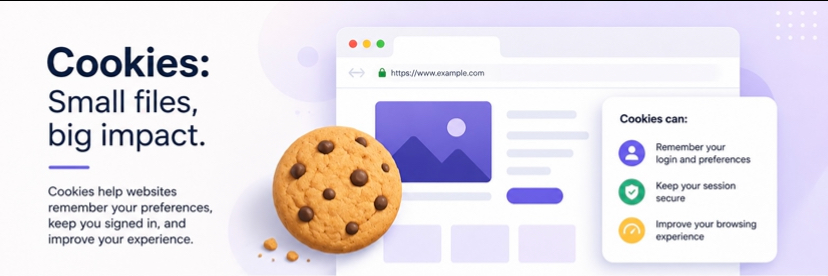
Whenever you visit a website, you are often greeted with a pop-up asking you to “accept cookies.” Most people click “Accept” without thinking twice, but very few actually understand what cookies are or what they actually do behind the scenes. Because of this, cookies have become one of the most misunderstood parts of the internet.…

Virtual Private Networks (VPNs) have become one of the most widely discussed tools in online privacy and cybersecurity. From ads promising total anonymity to claims of complete protection against hackers, VPNs are often presented as a catch-all solution for staying safe online. The reality is more balanced. While VPNs are genuinely useful for improving privacy…
ZIP files are one of the most common ways to compress and share data online. They make it easy to bundle multiple files into a single package and reduce file size for faster transfer and storage. However, ZIP files are not immune to problems. Sometimes, when you try to open one, you may encounter errors…
File sharing has become an essential part of modern digital life. Whether you’re sending business documents, collaborating on projects, or sharing personal files, the tools you use matter just as much as the files themselves. While convenience is important, security is even more critical. Not all file-sharing platforms are built with strong privacy protections. Some…

An enterprise or personal email inbox serves as the authoritative source of truth for digital identity. Because email infrastructure governs downstream authentication architectures—hosting account recovery protocols, password reset loops, and critical multi-factor authentication (MFA) tokens—it remains the highest-value target for identity-theft frameworks and credential-stuffing threat actors. When an email account is compromised, the primary indicators…

You’ve got a password-protected ZIP file. Maybe you put the password on it yourself for security and now need to share it openly. Or perhaps you’ve been sent an encrypted archive and need to remove the protection for easier access. Worse, you might have forgotten the password to your own important files. Whatever your reason,…

In our hyper-connected world, your life is spread across dozens, if not hundreds, of online accounts. From banking and email to social media and shopping, each one is a door secured by a password. The problem? The human brain isn’t designed to create and remember dozens of unique, complex passwords like J#s7&pL@!2vB*gK. This leads to a…

Spreadsheets are the workhorses of the data world. From budget trackers and project plans to complex financial models, Excel files often contain sensitive information that needs protection. The password feature in Excel is excellent for this, but it can become a real drag on your productivity when you’re the one constantly entering it. If you…
Continue Reading How to Remove a Password from an Excel File: 3 Secure Methods

Microsoft Word’s password protection is a fantastic feature for securing sensitive information in your documents, from confidential business reports to personal journals. But what happens when that security layer becomes more of a nuisance than a safeguard? If you’re tired of typing a password every time you open a frequently used document, you’re in the…
Continue Reading How to Remove a Password from a Word Document: A Simple Guide